Getting started
Marcus runs in your web browser on Windows, Mac and tablets. There is nothing to install, and your documents stay on your computer.
Open Marcus
Go to marcus.tkjglobalmedia.com/app and bookmark it for everyday use. The address without /app is the Marcus website, with these docs and the prices. Keep your browser up to date; Marcus is tested most closely in Google Chrome.
Open a document
- Drag a PDF onto the start screen, or press Choose a file.
- To look around first, press Open sample document: an eight-page sample agreement with made-up details.
Marcus reads the file in your browser; nothing is uploaded. A password-protected PDF asks for its password.
Documents you have opened are listed under Recent documents on the start screen, with your edits. Click one to carry on where you left off, or press its × to remove it from this browser for good. To switch files while one is open, use Tools ▸ Open another PDF…, or close the document with the ✕ beside its name. To work on several files at once, see Collections.
Find your way around
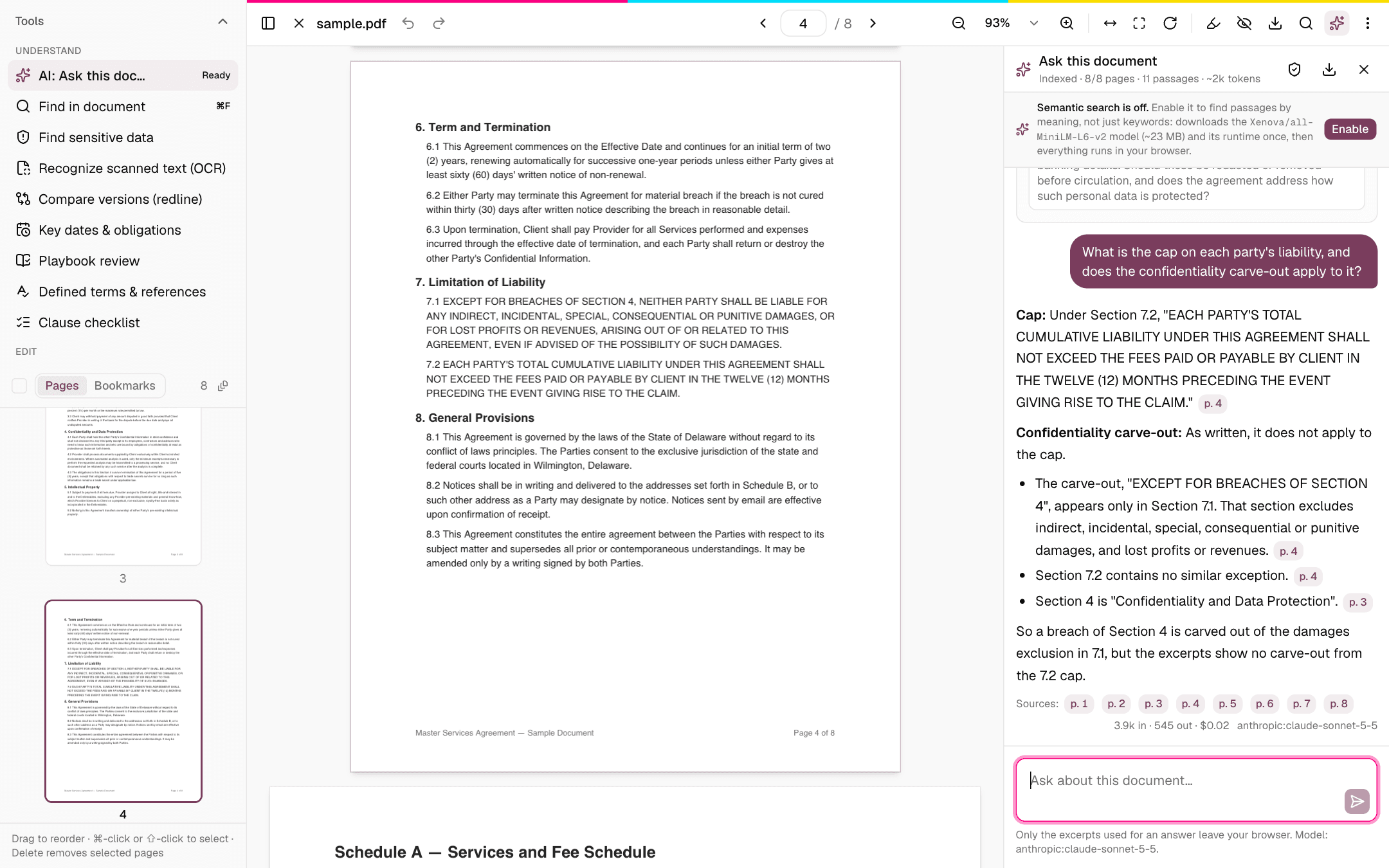
- The toolbar along the top: close (✕) and the file name, undo and redo, the page number, zoom and fit, rotate, the annotation and redaction tools, download, find, the assistant (✦) and the ⋮ menu, which has more actions, these docs and the choice of light or dark appearance. On a narrow window the less-used buttons move into the ⋮ menu.
- The sidebar on the left: the Tools menu, listing every tool by name in three groups (Understand, Edit and Share & export), and below it the Pages and Bookmarks views. Show or hide it with Ctrl+B (⌘B on a Mac).
- The document in the middle. Select text to get a small toolbar: Ask AI about this, Explain, Summarize, Propose edit (AI), Replace text…, Highlight, Comment for the team, Mark for redaction and Copy.
- Panels on the right: the assistant, and the tools you open from the Tools menu. Each has a close button at the top.
Saving your work
Marcus keeps your working copy in this browser as you go, a moment after each change, along with the assistant’s conversation. Changes reach a file on your computer only when you download it: Download edited PDF in the Tools menu or the toolbar. An Edited badge in the Tools menu shows that the document has changes.
Every change to the document can be undone and redone: Ctrl+Z (⌘Z on a Mac) and Ctrl+Shift+Z (⇧⌘Z on a Mac).
Ask the document
The assistant answers questions about the open document, and every answer cites the pages it relies on. Open it with the ✦ button, Tools ▸ AI: Ask this document or Ctrl+J (⌘J on a Mac). On a wide screen it opens with each document.
Ask a question
Type in the box at the bottom and press Enter. The answer arrives with page citations such as p. 4: click one to go to that page with the passage highlighted. The Sources line under the answer lists every page it drew on.
For a short document the assistant sends the model the whole text; for a longer one, only the passages that best match your question.
The first look and suggested questions
When a document opens, Marcus works out what it is (the type of document, the parties and the governing law) from an extract of its text, and suggests at least ten questions a careful reviewer would ask. Click one to ask it, or press Run all to work through them.
This first look sends a sample of the document’s text to the AI provider as soon as the document opens with the assistant showing. To have documents reviewed only when you ask, untick Review documents automatically when they open at the foot of the review card: Marcus then suggests questions from rules in your browser, and Review with AI asks for the full review when you want it. Your firm’s admins can turn the automatic review off for everyone, on the Account page.
Summaries
Press Summarize for a professional summary with citations. The arrow beside it also offers a Plain-language summary for the client. Long documents are summarised in parts and then combined, so the citations still point at the right pages.
Check answers against the document
Turn on Verify, the shield button at the top of the assistant. Each sentence of every answer is then checked against the document’s own text and marked supported (click to see the passage), partly supported (some of its words, or a figure, are not on that page) or not found in the document. A citation that points at the wrong page is called out. Verify runs in your browser, uses no AI and stays on until you turn it off.
Ask about a passage
Select text in the document and choose Ask AI about this, Explain or Summarize from the toolbar that appears.
Keep the AI’s work
The download button at the top of the assistant saves its answers and summaries as a Word document (.docx) or a PDF document. The conversation is also kept with the document in this browser.
What AI use costs
Before a pass over the whole document, such as a summary, Run all, key dates, a playbook review or a translation, Marcus shows roughly how much it will send and what that costs at the model’s list price. Under each answer you can see the tokens used and their cost. Everyday use is included in your plan; see Pricing for the fair-use limit.
Find, search and scanned pages
Find in document
Press Ctrl+F (⌘F on a Mac) or choose Tools ▸ Find in document. Every match is highlighted on the pages, the current one in orange. Press Enter for the next match and Shift+Enter for the previous one, and tick Match case or Whole words to narrow the search. Below the matches, Related passages lists other places that seem to deal with the same thing.
Search by meaning
Semantic search finds passages by what they mean, not only by matching words, for both Find and the assistant. To switch it on, press Enable in the notice that offers it: your browser downloads a small language model (about 23 MB) once and runs it on your computer, so no text is sent anywhere for it.
Scanned pages
A scanned page is a picture of paper: until its text is recognised it cannot be searched, quoted or redacted as text. Marcus spots such pages and offers to read them: choose Tools ▸ Recognize scanned text (OCR), or Run OCR in the assistant’s notice. Recognition runs in your browser; the first time, it downloads the English language data (about 3 MB) from Marcus itself.
Search, the assistant, the review tools and sensitive-data detection then work on those pages. To make the text searchable in other PDF readers as well, press Embed text layer into PDF and download the file.
Legal review tools
Open these from the Understand group of the Tools menu. Each opens a panel on the right; click any finding to go to its place in the document.
Key dates & obligations
Lists every deadline, payment term, renewal, notice requirement and duty in the document, with the party that must act, the date or timing, and the sentence it comes from. Filter by kind, export the dated items to your calendar (.ics) or everything as a spreadsheet (.csv), copy the list as Markdown, or pin items to the pages as notes.
Playbook review
Checks a contract against your negotiating positions. Start from a preset (customer-side or provider-side services agreement, mutual NDA, tenant-side lease), switch rules off, or add your own, each with the position you require and how much it matters. For each rule Marcus reports compliant, deviation, missing or check, quoting the sentence it relies on, and suggests replacement wording for deviations and gaps.
Save the findings with Report as Word (.docx) or Report as PDF, and share your playbook with colleagues as a file with Playbook as JSON.
Defined terms & references
A glossary of every term the document defines and how often each is used, with findings: references to clauses, schedules or exhibits that do not exist, capitalised terms that are never defined, defined terms used in lower case, and duplicate or unused definitions. This runs in your browser, without AI.
Clause checklist
Chooses a checklist for the type of document (services agreement, NDA, lease, employment, or a general list) and marks each expected clause present or missing, with why it matters and standard wording. Tick Add to addendum on missing clauses and press Append addendum to add them on a page at the end, or copy the wording. No AI involved.
Compare versions (redline)
Choose the other version of the document to see every insertion, deletion and replacement, page by page. Mark … changes on pages adds them to the document as annotations, which Save into PDF writes into the file. The export menu saves a Redline report as Word (.docx) or Redline report as PDF, or the open document as Word with tracked changes (.docx), ready to accept or reject in Word.
For a drafting suggestion, select a clause and choose Propose edit (AI). The revision is shown as a redline you can mark on the page or copy.
Redaction and sensitive data
Marcus removes redacted text from the file itself, rather than drawing a box over it, and gives you a certificate of what was done.
Find sensitive data
Tools ▸ Find sensitive data scans the text for email addresses, phone numbers in any country’s format, payment card and bank account numbers, sort codes, IBANs, dates of birth, passport and driving licence numbers, postcodes and IP addresses. It also finds national, tax and health identifiers from more than thirty countries, each named with its country: the UK National Insurance and NHS numbers and UTR, the US Social Security number, Ireland’s PPS number, Canada’s SIN, Australia’s TFN and Medicare number, India’s Aadhaar and PAN, Nigeria’s NIN and BVN, South Africa’s ID number, and the national numbers of much of Europe, Asia and Latin America. Numbers with check digits are checked against them, and plain numbers are reported only when a label such as “NIN” or “Tax file number” stands beside them, so random numbers are not flagged. Find names & addresses with AI adds people, postal addresses and organisations.
Untick anything that should stay, then press Mark … selected for redaction. The items become pending redactions, which you apply as below.
Redact
- Choose Tools ▸ Redact text or the redaction button in the toolbar, then drag over what should go. You can also select text and choose Mark for redaction.
- Check the pending boxes on the pages. Click one to remove it.
- Press Apply redactions in the bar at the bottom of the page and choose how (see below).
- Download the redacted file and check it before you send it.
Remove the text, or only cover it
- Remove the text (true redaction) deletes the text under each box from the file, destroys the parts of images under it, drops annotations that overlap it, and draws a black box. Use this for anything you disclose.
- Cover only (keep the text) draws the boxes but leaves the text underneath, where it can still be copied out. Use it for drafts only.
Redaction certificate
After a true redaction, ⋮ ▸ Redaction certificate gives you a record of it: the file’s fingerprint (SHA-256) before and after, the mode, and every redacted area page by page, as a PDF to print or file (Certificate PDF) or as JSON. It also checks that the open document still matches the certified result.
Edit, annotate and organise pages
Annotate
Tools ▸ Annotate, or the pen button, opens the annotation bar: Highlight, Underline, Strike through, Note, Rectangle and Text box, with a choice of colour. New annotations stay pending until you press Save into PDF, which writes them into the file as standard annotations that Acrobat and other readers show. Press Esc to put the tool down. To highlight quickly, select text and choose Highlight.
Change the text
Select text and choose Replace text…: Marcus removes the original words from the page and writes yours in the same place.
Fill form fields
Tools ▸ Fill form fields lists the document’s fields page by page. Type the values, or press Fill from the document with AI to have Marcus propose names, dates and other details found in the text, each with its source. Apply … to PDF writes the values into the file. Switch on Flatten as well to turn the fields into ordinary page content that can no longer be changed.
Organise pages
In the sidebar’s Pages view, drag thumbnails to put pages in a new order. Select pages with Ctrl-click or Shift-click (⌘ or ⇧ on a Mac), then rotate, delete or extract them as a new PDF; each page’s own menu has Rotate left, Rotate right, Extract as PDF and Delete page.
The Page tools menu inserts a blank page or the pages of another PDF (Insert pages from another PDF…), and splits the document into separate PDFs by page ranges or one file per page, downloaded together as a zip (Split into separate PDFs…).
Bates numbers, headers, footers and watermarks
Page tools ▸ Bates numbering, headers & watermark… adds Bates numbers (prefix, start number, digits and suffix), header and footer text in any corner, and a diagonal or horizontal watermark, on every page, the current page or the page ranges you give. Headers and footers can include the page number {n}, the page count {total}, the Bates number {bates}, the date {date} and the file name {name}. They are drawn into the pages, so they print and show in every reader.
More tools in the Edit group
- Crop pages… trims the margins, or keeps an area you draw. What is outside is hidden, not removed: to take content out of a file, redact it.
- Insert image… places a PNG or JPEG, such as a logo or a signature image, where you draw a box.
- Bookmarks & table of contents… creates bookmarks from the document’s numbered headings, schedules and exhibits, lets you edit them, and can add a contents page with clickable entries. Under Court bundle, two options are on unless you untick them: Add page numbers to bookmark titles (“3. Fees — p. 4”, counting any contents page) and Open the document at 100% zoom, as courts in England and Wales ask in their guidance on electronic bundles. The sidebar’s Bookmarks view shows any document’s bookmarks.
- Links… lists the links on the current page so you can remove them, or adds a clickable area that opens a web address or goes to a page.
- Compress & optimize… makes the file smaller by lowering the resolution of large images and merging duplicates. Text stays sharp, and you can undo it.
Signatures, passwords and the audit log
Digital signatures
Tools ▸ Digital signatures… checks any signatures already in the file and says whether the document is intact, was changed after signing, or carries an invalid signature, with the signer and the time. To sign, press Sign this document, choose your certificate file (.p12 or .pfx) and enter its password; you can add a visible signature box and a trusted timestamp. The password stays in your browser.
Marcus does not check certificates against a list of trusted authorities, so confirm a signer’s identity separately where it matters.
Passwords and permissions
Tools ▸ Security (passwords)… protects a document with AES-256 encryption: a Password to open, and an Owner password that guards the permissions you choose under Allowed without the owner password (printing, copying, changes and so on). Remove protection takes it off again with either password. Passwords never leave your browser. While a document is protected, page changes are switched off.
Audit log
⋮ ▸ Audit log… lists every change made to the document in this browser, from opening it to each page change, signature, protection, undo and redo, with the time and the file’s fingerprint before and after (never its text). Each entry is chained to the one before it, so a removed or altered entry shows. You can set your name as the Author, export the log as JSON or a readable PDF, add a trusted timestamp, or attach the log inside the PDF.
Accessibility
Tools ▸ Accessibility… reports what a screen reader will find: tags, language, title, alternative text for images, headings, fonts and a text layer. Make accessible sets the language and title and tags an untagged document, using the alternative text you enter for each image. Check the result in a dedicated checker such as PAC or Acrobat before relying on it.
Export, print and versions
Most of these are in the Share & export group of the Tools menu.
Download
Download PDF (Download edited PDF once you have made changes) saves the file with your changes. Extract page … as PDF saves the page you are on as its own file.
Word and Excel
Export as Word (.docx) rebuilds the document as editable Word text, with its headings, paragraphs and lists; your notes and highlights become Word comments, and scanned pages come across as images. Extract tables… finds the tables in the document: preview them, then download them all as one Excel workbook, a sheet per table, or any one table as CSV.
Translate
Translate… produces a Word file in the language you choose, keeping the headings and paragraphs. It sends the whole document’s text to the AI in batches, so Marcus shows an estimate first.
⋮ ▸ Print… prints the pages exactly as shown, with or without annotations and form values, at 150 or 300 dpi. Marcus reminds you about annotations you have not saved yet.
Versions
Tools ▸ Versions… saves the document as a named version with a note and a status (draft, in review, approved, final), kept in this browser. Restore a version (you can undo that too), or Compare it with the current text in the redline panel. To share versions with colleagues, use Team review.
Comments for other PDF readers
Export comments (XFDF) saves the document’s highlights, notes and shapes as an XFDF file, the format Acrobat and other readers exchange. Import comments (XFDF)… brings comments from such a file in as pending annotations, which you then save into the PDF.
Collections, chronologies and litigation
Work across many documents at once. As with single documents, everything runs in your browser.
Open a collection
On the start screen, press Open several documents… and choose the files. Marcus reads them one by one, then shows them as a collection with these tabs:
- Ask: questions across every document, with citations that name the document and page and open it there.
- Clauses: every checklist clause against every document, present or missing.
- Playbook: one playbook checked against all the documents.
- Dates: dates and obligations from all the documents in one list, with calendar export.
- Chronology, Exhibits and Privilege: see below.
- Search: exact search across the whole set.
Open any document to work on it; closing it brings you back to the collection.
Chronology
Build from the record turns each letter or email header (From, To, Date, Subject) and each sentence with a date into an event, with the parties, a category and a link to the passage. Edit dates, descriptions, parties and notes in place, add events by hand, star the key events and merge entries that describe the same thing. Building again adds only what is new. Read it as a narrative, or export it to Word, CSV, or a JSON file a colleague can import into their own chronology.
Exhibits and privilege
Exhibits drafts an exhibit index, labelled A, B, C… or 1, 2, 3… with a prefix you choose, and descriptions you can edit. Prepare exhibit set stamps each document with its exhibit label and continuous Bates numbers, and downloads a zip with the stamped documents and the index as PDF and CSV.
Privilege drafts a privilege log: it classifies each document from its own wording, picks out From, To, Date and Subject lines, and exports as CSV. It is a starting point for your review, not a conclusion.
Batch processing
On the start screen, Batch processing… runs the same steps over many PDFs: compress, Bates numbers, headers, footers and watermarks (numbering carries on from file to file), trim margins, flatten forms, redact the sensitive data the built-in rules find, and export to Word. You get one zip with the processed files and a manifest of what was done to each.
Team review
Share a document with colleagues to comment on it, track its status and keep its versions together. Everything shared is encrypted end to end with your team’s passphrase.
Connect to your team workspace
- On the start screen, next to Team workspace, press Connect. With a document open, Tools ▸ Team review does the same.
- Enter the Workspace passphrase your firm gave you and Your name, as colleagues will see it.
With Stay connected on this device ticked, Marcus remembers the connection in this browser. On a computer others use, untick it, or press Disconnect on the start screen when you finish.
Status, assignee and due date
At the top of the panel, set the review status (Draft, In review, Changes requested, Approved or Final), who the review is assigned to, and when it is due.
Versions and activity
Under Versions, publish the document as it is now, with a note of what changed. Anyone in the team can open a published version (and undo that) or compare it in the redline panel. Activity shows what has happened and who else has the document open.
Privacy and your documents
Working copies stay in your browser
Marcus opens, edits and keeps working copies on your computer, in this browser’s storage; documents you share for team review reach our servers only encrypted (below). It also means they are not on your other computers or browsers, and clearing this browser’s data for the site removes them. Download anything you need to keep.
What the AI sees
When you use an AI feature, the text that request needs is sent to Anthropic’s Claude models through Anthropic’s API, and Marcus does not keep it. A question sends the relevant passages, or the whole text of a short document; passes over the whole document, such as summaries, key dates and translation, send more, and Marcus shows an estimate first. The first look sends a sample of each document as it opens with the assistant showing, unless you or your firm have turned the automatic review off.
These never send document text anywhere: Find, search by meaning, OCR, defined terms, the clause checklist, Verify, the rule-based sensitive-data scan, redaction, signatures, passwords and every page tool.
Team review is encrypted end to end
Shared documents, comments, names and statuses are encrypted in your browser with a key from your team’s passphrase before they are sent; the server stores only the encrypted data.
Where Marcus runs
The app’s servers run in London, in Vercel’s London region.
Keyboard shortcuts
On Windows use Ctrl; on a Mac, ⌘ (Command). Shortcuts do nothing while you are typing in a box.
| Action | Windows | Mac |
|---|---|---|
| Open or close the assistant | Ctrl+J | ⌘J |
| Find in the document | Ctrl+F | ⌘F |
| Next or previous matchIn Find | Enter/Shift+Enter | Return/⇧Return |
| Next or previous page | →/← | →/← |
| Zoom in or out | Ctrl+Plus/Ctrl+Minus | ⌘+/⌘− |
| Back to automatic zoom | Ctrl+0 | ⌘0 |
| Rotate the view clockwise (the file itself is not changed) | R | R |
| Show or hide the sidebar | Ctrl+B | ⌘B |
| Undo | Ctrl+Z | ⌘Z |
| Redo | Ctrl+Shift+ZorCtrl+Y | ⇧⌘Zor⌘Y |
| Leave the annotation or redaction tool | Esc | Esc |
| Send your question (add Shift for a new line instead)In the assistant | Enter | Return |
| Save a note or replaced textIn its dialog | Ctrl+Enter | ⌘Return |
| Select all pagesIn the Pages view | Ctrl+A | ⌘A |
| Add a page to the selection, or a run of pagesIn the Pages view | Ctrl+click/Shift+click | ⌘-click/⇧-click |
| Delete the selected pagesIn the Pages view | DeleteorBackspace | Delete |
| Clear the selectionIn the Pages view | Esc | Esc |
Troubleshooting and help
The assistant says AI is paused, or asks me to connect or sign in
Follow its message. Depending on how your firm’s Marcus is set up, AI works for people connected to the team workspace (Tools ▸ Team review) or signed in, and if your firm has no active plan, an admin can choose one on the account page. Meanwhile the assistant still finds and cites passages, without AI.
“No text found — this looks like a scanned document”
The pages are images. Run OCR (Scanned pages) and the assistant, search and redaction will work on them.
Find or the redaction tool misses text I can see
That text is probably part of an image, as on a scanned page. Run OCR first, or draw a redaction box over it: true redaction also destroys the image underneath.
A document is missing from Recent documents
Marcus keeps documents only in the browser where you opened them, so they are not on another computer, another browser or a private window, and clearing the browser’s data removes them. Files larger than 60 MB still open, but are not kept in the list.
I cannot rotate, delete or add pages
The document is password-protected, which switches page changes off. Remove the protection with Tools ▸ Security (passwords)…, make your changes, and protect it again.
A file I protected with Marcus does not open elsewhere with the right password
Some files protected with AES-256 by Marcus before November 2026 carry a faulty password check that other readers reject. Marcus still opens them with the right password: remove the protection and protect them again before sending them on.
The assistant does not open by itself
On narrower windows, tablets and phones it waits to be asked, so the document has room: press ✦ or Ctrl+J (⌘J on a Mac). Once you close it for a document, it stays closed for that document.
How do I get help?
Email marcus@tkjglobalmedia.com with what you were doing and what you saw. Please do not attach client documents: a description, or the same steps on the sample document, is usually enough.
Still stuck?
Email marcus@tkjglobalmedia.com and we will help. Not using Marcus yet? Email us to get started.
Comments
Select text and choose Comment for the team, or write in the Team review panel and tick About page … to comment on the page you are on. Commented passages are tinted, with a marker that opens the thread. Reply, resolve or reopen a thread, and edit or delete your own comments; show Open, Resolved or All comments.